 DroneScout
Send drones to CalTopo
Last reviewed: 2026-10-07 · Requires: Platinum
DroneScout can forward every drone it detects to CalTopo, the mapping tool many search-and-rescue, fire and incident teams already use. Each drone appears on your CalTopo map as a live position, labelled with its Remote ID serial number, next to your own team's trackers. The phone running DroneScout acts as a drone sensor in the field.
What you need
- DroneScout with a Platinum subscription, on Android, iPhone or iPad
- A CalTopo team account, with admin or manage access to create the key. Every detected drone then shows up automatically on your team's maps.
- A data connection on the phone, at least now and then (see No signal in the field)
Step 1 — Create a connect key in CalTopo
A team admin or manager creates the key:
- Open the Team Admin page in CalTopo.
- Go to the Trackable Devices tab.
- Click Create New Access URL. CalTopo shows a URL containing the connect key.
You can copy either the whole URL or just the key — DroneScout accepts both. CalTopo's own instructions: Team tracking.
Step 2 — Enter the key in DroneScout
- In DroneScout, tap the ⋯ menu (three horizontal dots) and open Preferences.
- Open the Push Server tab (only shown with Platinum).
- Under PUSH TO EXTERNAL SERVER, choose CALTOPO in the drop-down.
- Tap the pencil next to CONNECT KEY, paste the key or URL, and tap the check mark to save it.
- Switch Enable on.
Step 3 — Test the connection
Tap Test server. DroneScout sends one test position, called TESTDEVICE, at your phone's location. Then, in CalTopo:
- Open a map and, in Map Layers → Realtime Data, switch on Shared Locations and choose your team.
- Look for TESTDEVICE at your position.
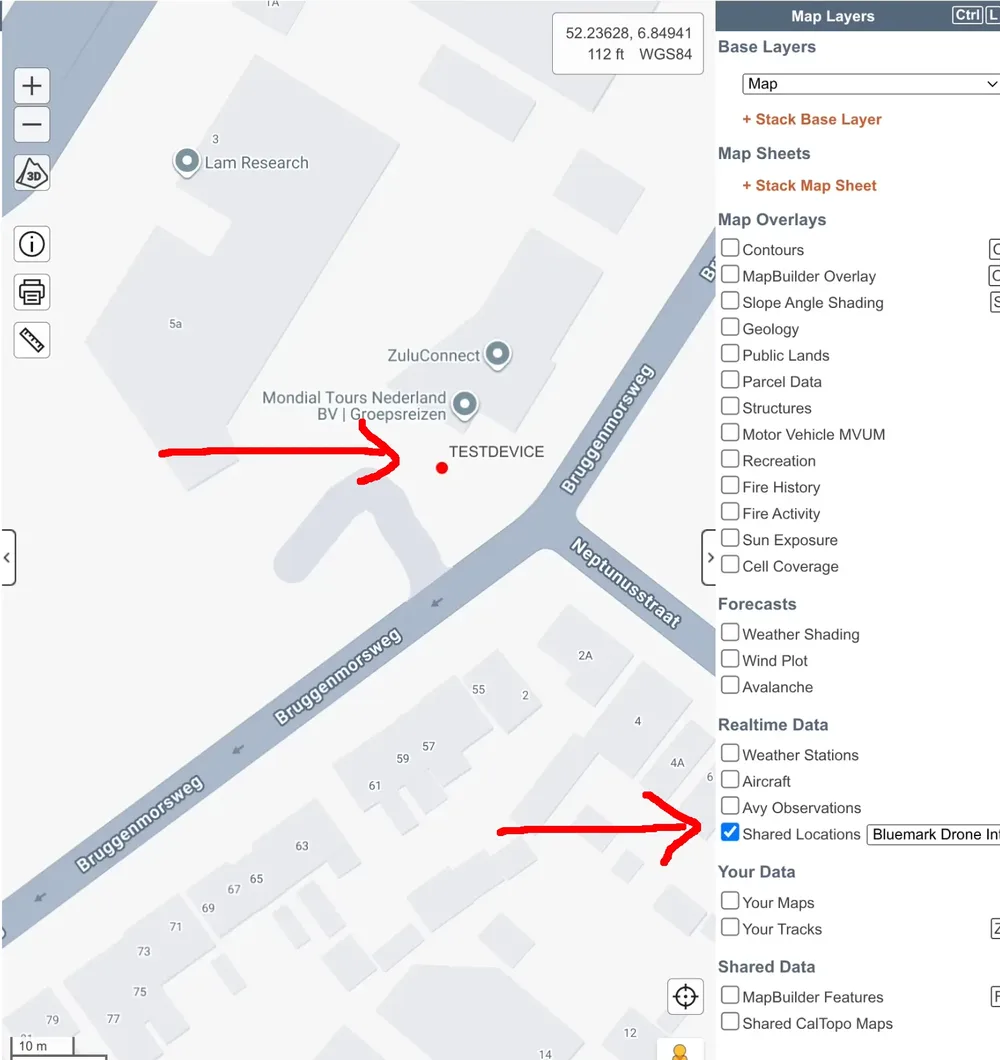
If the app doesn't know your location yet (location permission off, or no GPS fix), the test point is placed at a fixed spot in California instead — the success message says so.
Check the map, not just the message. CalTopo accepts positions for any key, even a wrong one, so as long as the phone is online the test reports success. Only TESTDEVICE appearing on the map proves the key is right. If it doesn't appear, re-copy the key.
What gets sent
For every detected drone that reports a position, DroneScout sends:
- the drone's Remote ID serial number, as the CalTopo device name
- the drone's position — latitude and longitude (not the pilot's, and not your phone's)
Positions are sent at most once per second per drone, while the drone is broadcasting and your phone receives it. Drones that broadcast no position are skipped. Your DroneScout Bridge, if you use one, isn't sent as a drone.
DroneScout can send to CalTopo, your own server and the Drone Radar network at the same time; each destination has its own settings.
No signal in the field
If the phone has no connection, positions aren't lost straight away: DroneScout keeps them in a queue and sends them when the connection returns. Positions older than 24 hours are dropped. On CalTopo, the drone's track then fills in afterwards.
Keep it running
DroneScout only sends what it receives, so it has to keep scanning. If you put the phone away, follow Keep scanning in the background. For more drones and longer range — and to receive Bluetooth Long Range on an iPhone — use a DroneScout Bridge.
Troubleshooting
| Problem | What to check |
|---|---|
| TESTDEVICE doesn't appear | The key is copied completely and still exists in CalTopo (a deleted or wrong key gives no error); Shared Locations is switched on in CalTopo; you're looking at the right team's map |
| Test works, but no drones appear | Enable is on; drones show up in DroneScout itself; the drone broadcasts a position (why not every drone is detected) |
| Drones stop updating when the phone is locked | Background scanning — see this guide |